Christmas ideas / Tutorial
Little Motifs · Project guide
How to Use Christmas PNG Clipart in Canva
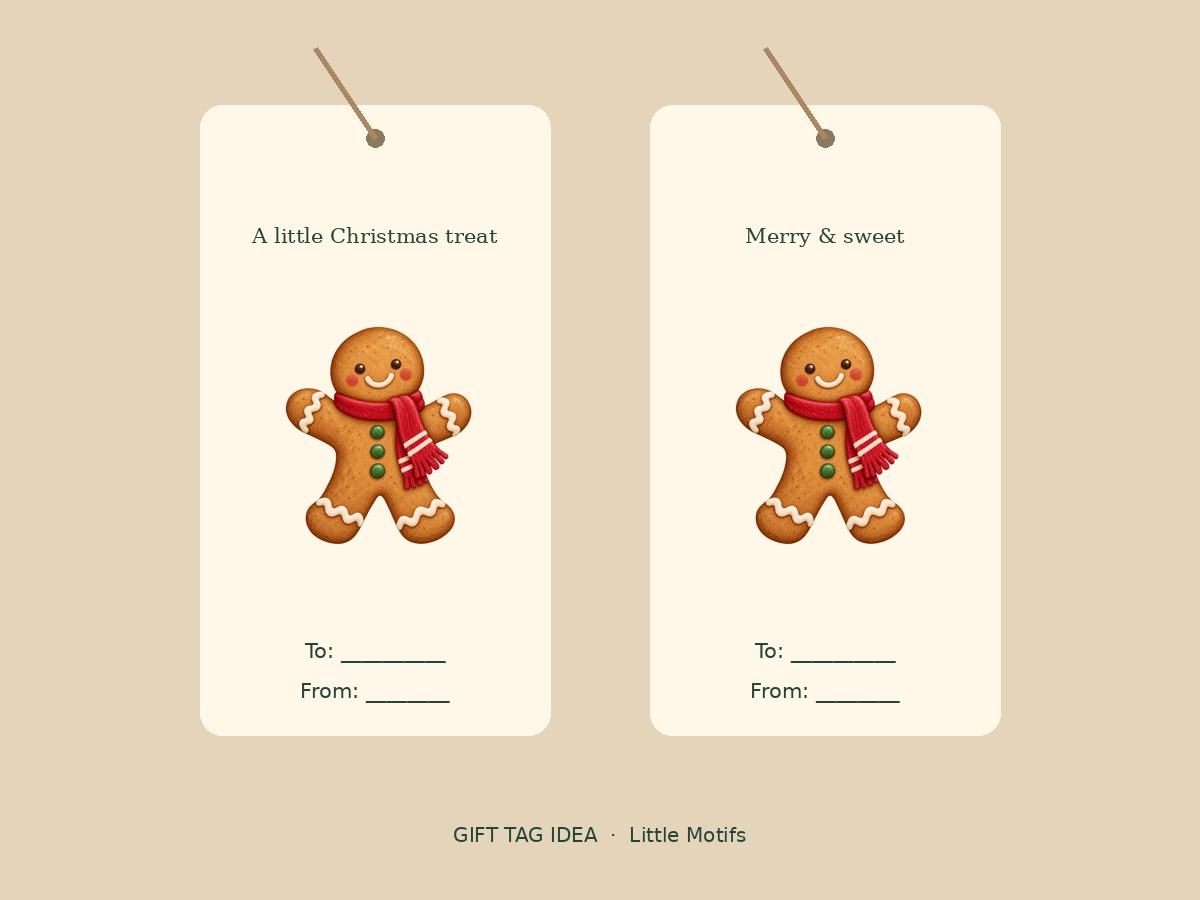
Bought a PNG pack but not sure what to do with it? Think of clipart as a set of separate illustrations you can place in your own design. This beginner workflow uses the free gingerbread PNG to make a small Christmas gift tag in Canva.
Unzip the download, upload an original PNG to Canva, place it in a design at a suitable size, add your text, then export the finished project. Little Motifs files already have transparent backgrounds; they are illustrations to arrange, not editable Canva templates.
What you need
- The free Little Motifs gingerbread PNG or one of your purchased Christmas packs
- A Canva account and your downloaded files, extracted from the ZIP
- A project size: for this example, a 2 × 3.5 inch gift tag
Try the free gingerbread PNG or browse the collections below. Paid packs are available through Payhip, which handles checkout and file delivery.
1. Unzip the files before uploading
Download your file from the free sample page or your Payhip purchase confirmation. Extract the ZIP on your device. Open the PNG folder and choose the original gingerbread-cookie.png. Upload the image itself, not the ZIP, an inventory preview or a screenshot of the shop.
2. Start with the finished project size
Create a 2 × 3.5 inch portrait design for a gift tag, or choose the dimensions required for your card or invitation. A PNG pack contains artwork rather than a complete editable template, so you choose the text, fonts, colors and arrangement.
3. Upload the original transparent PNG
Add the image from your device using Canva’s upload controls, then place it on the page. Add a pale pink or green background behind it to check that only the gingerbread remains visible. The transparent area around the illustration is already part of the supplied file; there is no background to remove from the original.
4. Keep the illustration small and crisp
For this tag, place the gingerbread at about 1.2 inches wide. Its original canvas is 1254 × 1254 pixels. Pixel width divided by placement width gives an approximate pixels-per-inch value; the transparent margins mean the painted cookie is smaller than the canvas. Keep text inside the cutting edge and leave room for a punched hole.
5. Add your message and check the layout
Write a short greeting and a To / From line. Use one illustration as the main accent rather than filling every gap. Zoom out to actual size and check the smallest text. For a coordinating card, repeat the same background and type style with a woodland character or village house.
6. Export for the way you will use it
For a printed card or tag, select the PDF Print option and follow your printer’s bleed and crop-mark requirements. For a finished digital invitation, choose an image format that suits where you will share it. Exporting a new design with a transparent background is a separate Canva feature that requires an eligible plan; it is not the same as uploading an already transparent PNG.
7. Print one test and keep the source files private
Print at actual size before producing a sheet of tags. Check cutting space, legibility and color on your paper. If selling a finished digital design, supply a flattened result that does not expose the source artwork. Do not share the original PNGs or a Canva template link that lets another user extract them.
File size and printing
The individual illustrations are RGB PNGs with transparent backgrounds. Native dimensions vary and are listed on each pack page. A larger export or a 300 ppi setting does not create more detail. Patterns and compositions are separate arrangements, not extra individual illustrations.
Can I sell the finished design?
The single-user license allows commercial finished projects. Do not resell, share or expose the source artwork. Check the full license before offering templates or digital products.
Before you start
Are the finished projects or editable templates included?
No. You receive the PNG artwork and create your own layout. These examples demonstrate possible uses; fonts, text and templates are not supplied.
Why does my PNG look like it has a background?
Some image viewers show transparency as white or a checkerboard. Test the original PNG over a colored shape in your editor. Use the PNG from the download, not the JPG preview saved from this website.
Can I use the free sample for this project?
Yes. The free gingerbread PNG includes the single-user license. It is a useful way to try a small tag or card before buying a pack.
Artwork for this project
- Christmas Bakery Clipart — 20 illustrations, two transparent PNG patterns and one composition.
- Woodland Christmas Clipart — 20 illustrations, two transparent PNG patterns and one composition.
- Christmas Village Clipart — 20 illustrations, two transparent PNG patterns and one composition.
Explore the complete 100-illustration Christmas bundle.
Further reading
Canva features and plan availability may change. Little Motifs is independent of Canva.